Bulk Import Products from AliExpress

Found several products you would like to sell? Bulk import products from AliExpress into DSers instead of adding each listing separately. Bring your chosen items into one Import List, ready to review and prepare for your store.

Get Started
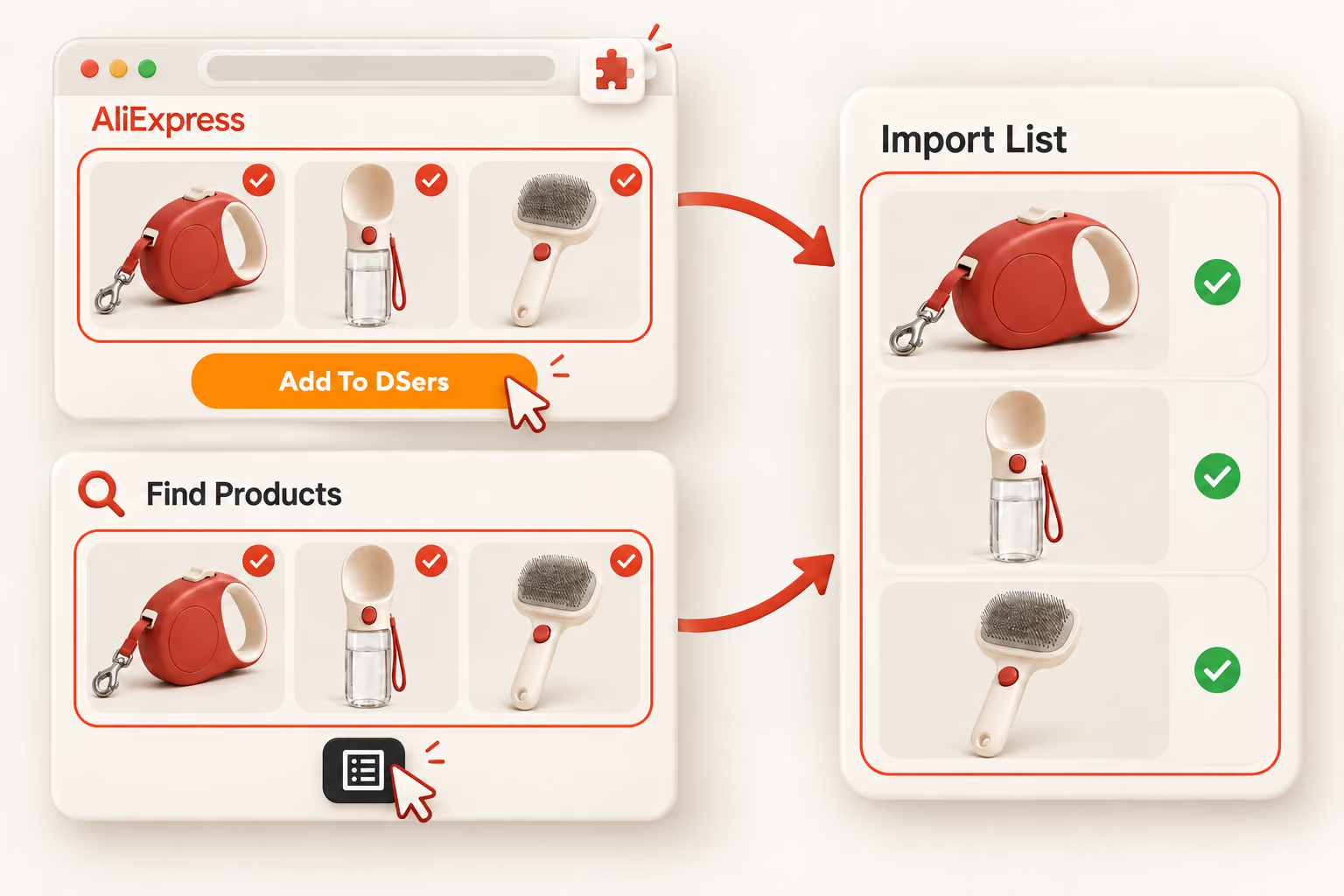
Selected pet products imported as a group through the AliExpress extension or DSers Find Products into the Import List.

Spend Less Time Repeating the Same Import

Finding products is only the beginning. Once you have several items in mind, adding them one by one creates another round of work before you can start preparing them for sale. Bulk importing lets you select multiple listings and add that group to DSers in one action.

The result is a set of products in your Import List: the workspace where imported listings wait for review. You can finish bringing in the items you want, then turn your attention to their details.

Choose the Starting Point That Suits Your Search

You can build that selection in two places. Browse AliExpress when you want to explore its extensive catalog, or use Find Products when you prefer to start with product collections inside DSers. Each offers a different way to discover items for your store.

Explore More on AliExpress

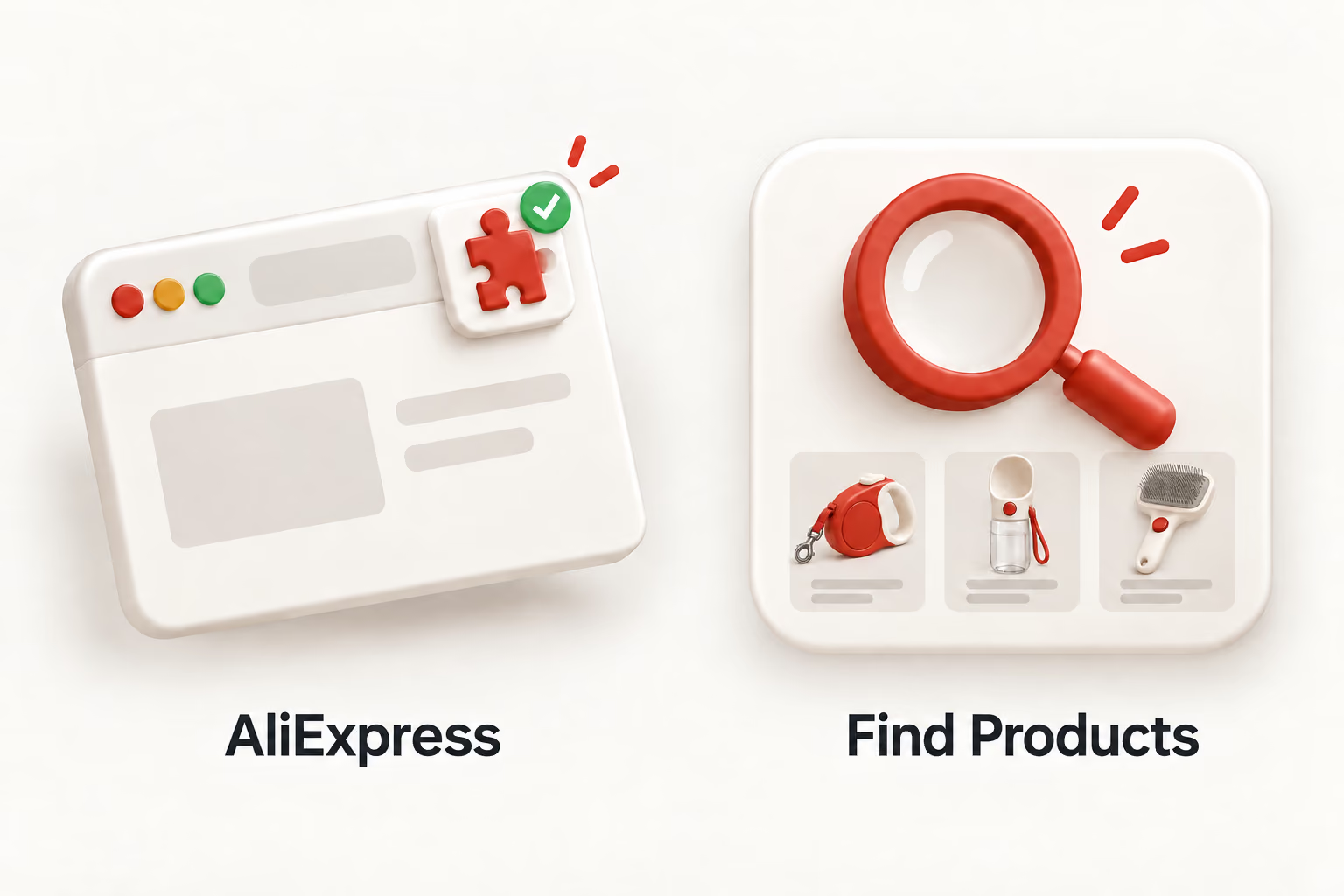
The DSers Chrome Extension lets you import while browsing AliExpress. Explore categories, compare supplier listings, and look for specific items across search results, supplier stores, and Related Items. This is a useful starting point when you have a product idea and want to investigate the available options.
Start with Collections Organized by DSers

Find Products brings product collections put together by the DSers team into your workspace. These collections give you a more focused place to begin browsing when you are looking for ideas. You can search, choose items, and import them without leaving DSers or installing the extension.

Find Products offers product pools from AliExpress, Alibaba, and 1688 Dropshipping. The Chrome Extension batch-import workflow described here is for AliExpress.

Import One Find or a Group of Products

Once you have chosen your products, the difference is how you add them. Individual and batch imports both bring listings into the Import List. Batch importing reduces repeated import actions; it does not change how much attention each product may need afterward.

For an occasional find

Import an individual listing when you only want one product. If you find more items later, you can add them as you go. Each import handles that particular listing.

For several products at once

Select the listings you want from a supported page and import the group together. This suits a sourcing session where you have already found several items and are ready to bring them into DSers.

After Importing, Prepare Your Products in Bulk

Importing brings supplier listings into DSers. Preparing them for your customers is the next task. In the Import List, Bulk Edit lets you apply changes that several products share, whether those products were imported individually or in a batch.

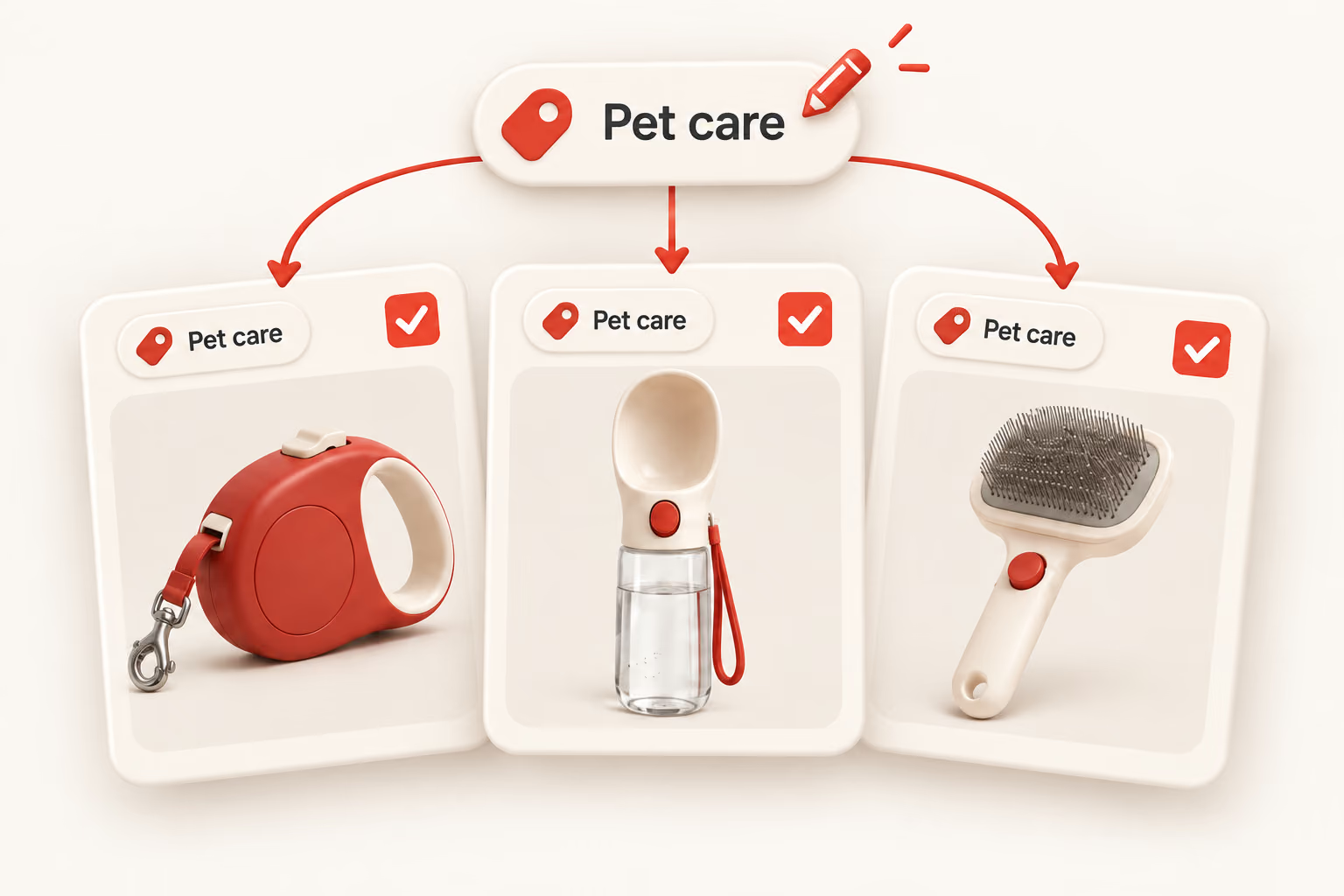
One shared Pet care tag applied to three selected pet product listings.

Set prices across selected products

Adjust selected product prices or apply a markup rule when several items follow the same pricing approach. Review the resulting prices before publishing.

Make shared title changes

Add common title text, such as a prefix or suffix, across selected listings. This handles repeated wording while leaving product-specific details for individual editing.

Organize products with shared labels

Add tags or assign a product type to selected items for your Shopify store. For example, related accessories can share a Pet care tag.

Use Bulk Edit for common changes, then review each product's images, description, and variants. Preparing listings and pushing them to your store remain separate from importing them.

From Product Selection to Store Preparation

  1. Choose the AliExpress Chrome Extension or DSers Find Products as your starting point.
    01

    Choose where to find products

    Browse AliExpress with the DSers Chrome Extension, or open Find Products inside DSers.

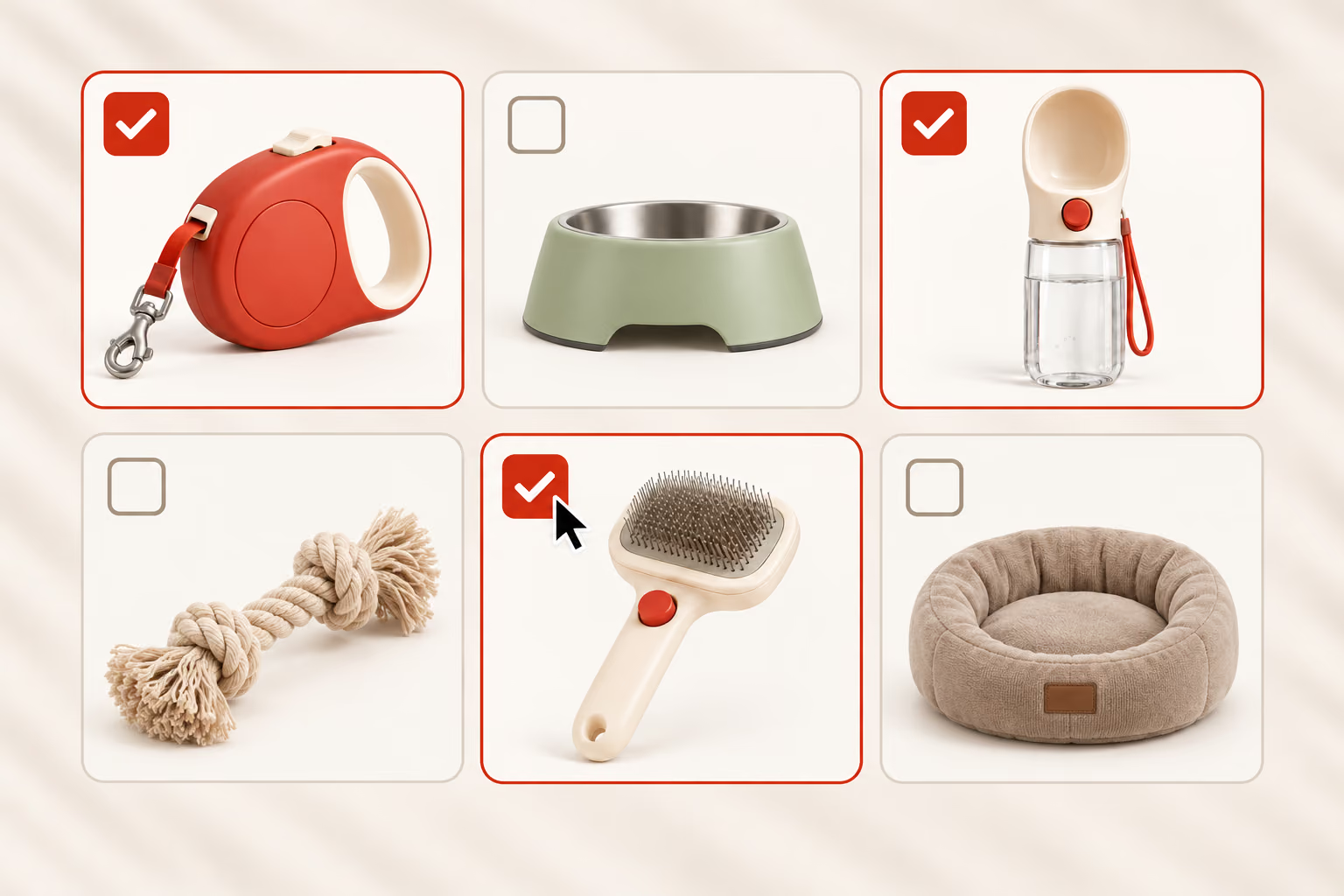
  2. Selecting a retractable leash, pet water bottle and grooming brush from six pet products, with three checked boxes and a pointer.
    02

    Select the products you want

    Select multiple products from AliExpress search results, a supplier store, or Related Items. In Find Products, select the items you want from the product results.

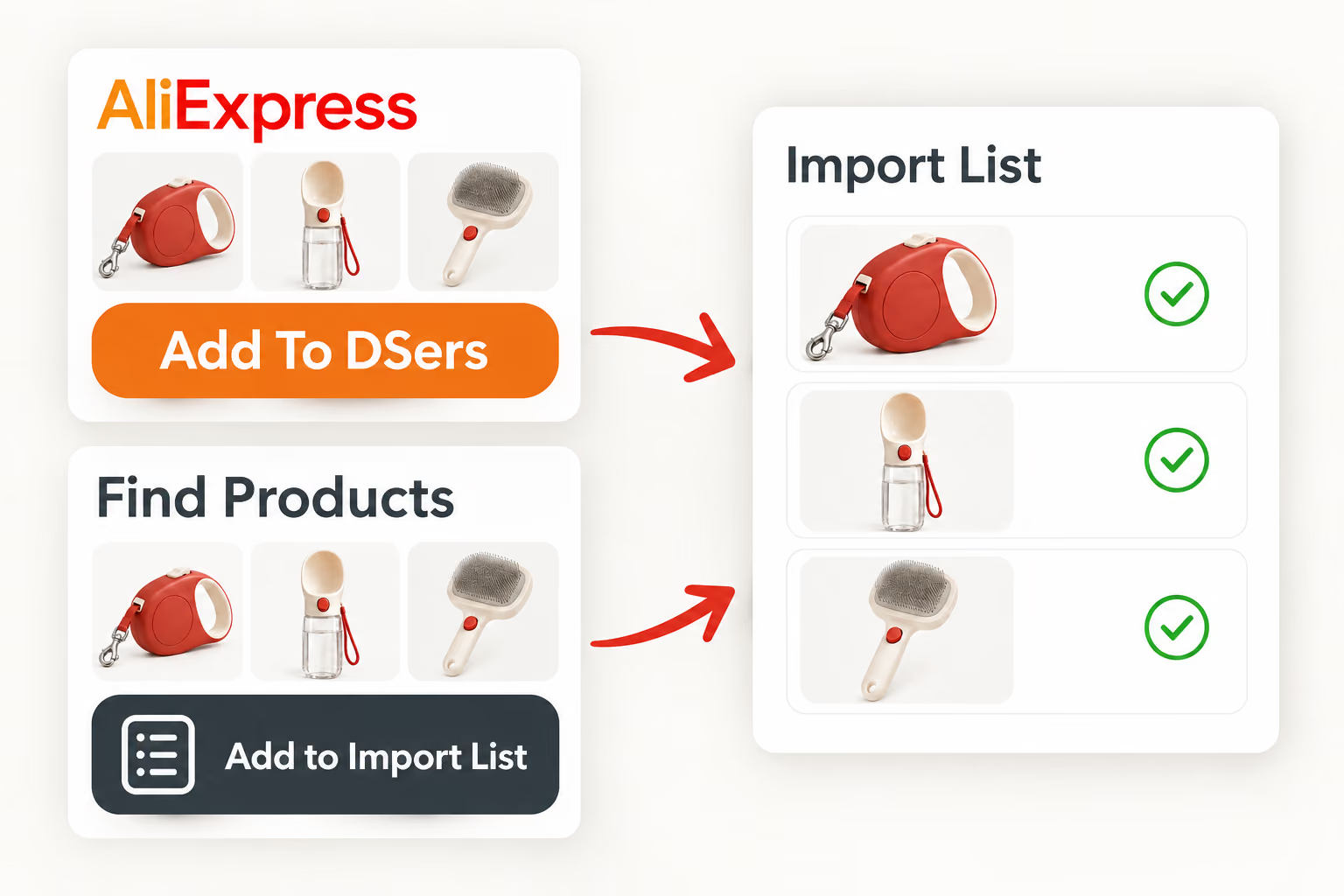
  3. Add To DSers and Add to Import List controls bring selected pet products into the DSers Import List.
    03

    Import your selection together

    On AliExpress, click Add To DSers. In Find Products, use Add to Import List. Your selected products will appear in the DSers Import List.

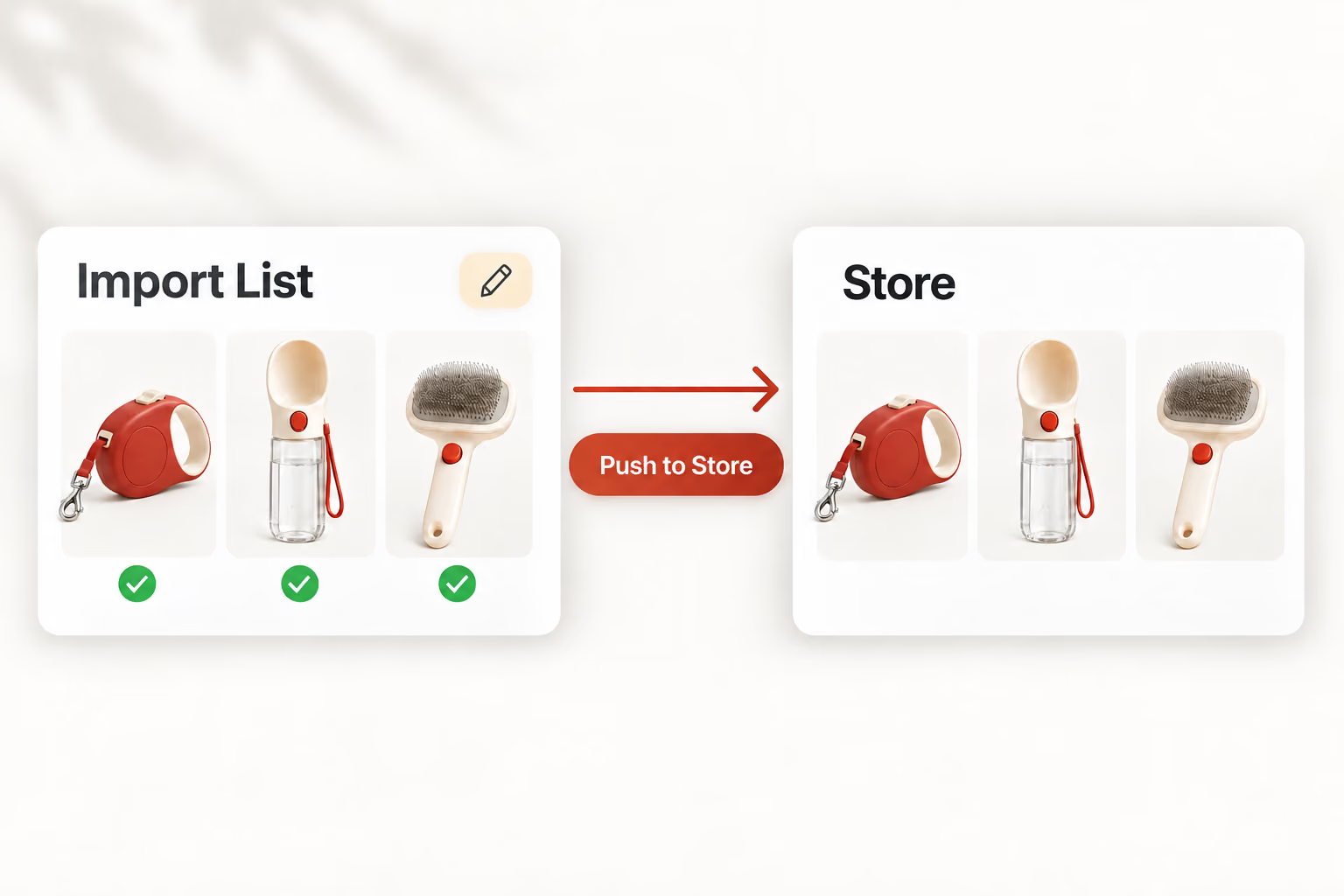
  4. Review and edit pet products in the Import List before pushing them to a store.
    04

    Review before you publish

    Open your Import List to review the imported products and edit their details. When they are ready, push your chosen products to your store.

Read the bulk import guide

When You Have More Than One Product to Add

Prepare a themed collection

A pet travel collection might include retractable leashes and portable water bottles. Import the complementary items you have chosen together, then prepare their listings for the same launch.

Assess a new category

When considering a new category, bring several candidate products into your Import List. Review their details there before deciding which ones to prepare for your store.

Expand an existing range

If a supplier has several new items relevant to your store, select those additions in one browsing session. Batch import them to begin preparing the next catalog update.

Bring Your Next AliExpress Finds into DSers

Found the products you want to work with? Import them together and move on to preparing your listings, with fewer repeated actions between product discovery and your Import List.

Get Started

Bulk Import Products FAQ

How many AliExpress products can I import in one batch?

The DSers Chrome Extension supports up to 10 products from search results, 12 from Related Items, and 30 from a supplier store page. Daily import limits also apply.

Can I bulk import products without the Chrome Extension?

For batch imports directly from AliExpress pages, the extension is required. Inside DSers, Find Products offers another route: select products and add them to your Import List without the extension.

Does bulk importing publish products immediately?

No. DSers adds imported products to the Import List for preparation. Pushing products to your store is a separate action after you have reviewed them.

What can I change with Bulk Edit?

DSers Bulk Edit supports price, title, tags, and product type changes for selected products in the Import List. Review images, descriptions, and variants separately where needed.

Is this the same as importing a product CSV?

No. These workflows bring selected supplier listings into DSers through the Chrome Extension or Find Products. You do not need to prepare a CSV file for the batch.